Why semantic search can’t find invoice INV-2024-0781 — and what I added instead

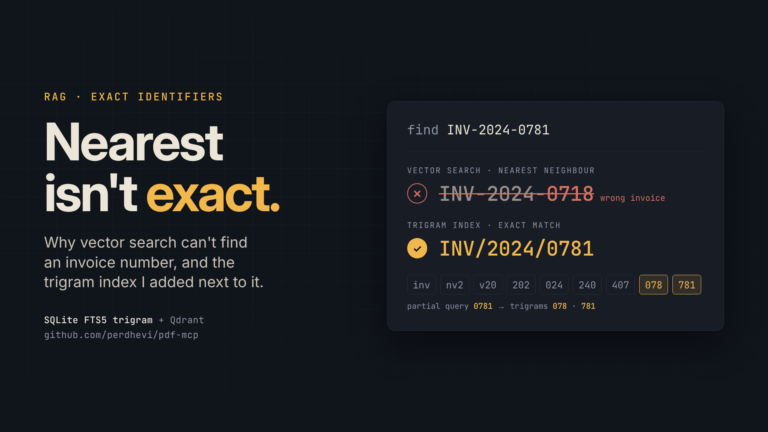
I asked my own document server for invoice INV-2024-0781 using its semantic search. It ranked a fibre-patch-cord invoice first, with a score of 0.511. The only document that actually contains that number came third, at 0.508. Four of the five results don’t contain the number at all.

That isn’t a bug. Vector search always returns the nearest neighbours, and it has no way to say “that exact number isn’t here.”

The server is pdf-mcp, a personal project. It’s an MCP server that indexes each customer’s PDFs (contracts and invoices) into Qdrant, so an AI client can search them and get answers with page citations. This article is about the second index I added next to the vectors, and why it’s there.

Why embeddings are the wrong tool for identifiers

An embedding model turns a chunk of text into a vector that represents what the text is about. That’s exactly what you want for a question like “what is the notice period for termination?” The clause that answers it may not use the words “notice period” at all. Vector search still finds it, because the meaning is close.

An invoice number is the opposite kind of query, because it carries no meaning to capture. Invoice pages are near-identical: same header, same terms, same layout. Whatever the embedding captures about a page, the number is a small part of it, which is why the scores above sit so close together.

Formatting makes it worse: the same number can appear as INV-2024-0781, INV/2024/0781 or INV20240781, and OCR adds stray spaces. For this lookup I wanted exact character matching, not similarity.

What I built

pdf-mcp already stores every page’s extracted text in a SQLite registry. That includes the PDF text layer, OCR output for scanned pages, and the vision model’s descriptions of charts and figures. So I added a SQLite FTS5 full-text table over a normalised copy of that text, using the trigram tokenizer:

self._db.execute(
    "CREATE VIRTUAL TABLE IF NOT EXISTS pages_fts USING fts5("
    "norm, customer UNINDEXED, doc_id UNINDEXED, page UNINDEXED, tokenize='trigram')"
)

A trigram index stores every three-character sequence, so it can match any substring, not just whole words. That matters because identifiers don’t have clean word boundaries.

Page text and the query both go through the same normalisation function:

_ID_SEP = re.compile(r"(?<=[0-9A-Za-z])[ \t]*[-/_.:#][ \t]*(?=[0-9A-Za-z])")

def normalize_ref(text: str) -> str:
    return _ID_SEP.sub("", text or "").lower()

It removes separators (- / _ . : #) that sit between letters or digits, including the spaces OCR tends to add around them, and then lowercases everything. INV-2024-0781, inv/2024/0781 and INV20240781 all become inv20240781. The normalised query is matched as a phrase, so a partial number like 0781 also finds INV-2024-0781.

The normalised text is only used for matching. The snippet in each result is cut from the original page text, using a pattern that allows an optional separator between each character. So you see INV/2024/0781 exactly as it was printed.

Some smaller details:

  • At least three characters. A trigram index can’t look up anything shorter than a trigram, so find_reference rejects shorter input with a clear error.
  • The index stays in sync. Saving a document’s pages rewrites its rows in both the page table and the FTS table under one lock, and deleting a document removes it from both. On startup, the index is rebuilt if its row count doesn’t match the page table or the normalisation version has changed.
  • Ranking. Whole-identifier matches come first. 0781 counts as whole inside INV-2024-0781, where the separator marks a boundary, but not inside 10781. After that come documents with the reference in the filename, then documents with more occurrences. Each match lists the customer, document, pages, occurrence count, a snippet, and a link that opens the PDF at the first matching page.

Scoped by customer, with a separate global tool

Every query tool in pdf-mcp takes a customer_code and only touches that customer’s data. Exact lookup follows the same rule, as two separate MCP tools:

  • find_reference(customer_code, reference) searches one customer’s documents. It’s always available.
  • find_reference_all_customers(reference) searches every customer. It’s only registered when PDF_MCP_ALLOW_GLOBAL_SEARCH=true. Without the flag, a client doesn’t see the tool at all.

The command-line pdf-mcp ref searches all customers by default, because it’s the operator’s tool, not the agent’s.

The two indexes aren’t merged. ask and search still go to Qdrant only. Instead, the server’s instructions tell the client LLM to use find_reference for invoice, PO and contract numbers, because semantic search is unreliable for those. The agent picks the tool.

Here’s the same question both ways, on the repo’s synthetic sample documents:

  • pdf-mcp find ACME "INV-2024-0781" (vectors, bge-m3): five documents, scored 0.511, 0.511, 0.508, 0.475 and 0.462. The right one is third.
  • pdf-mcp ref INV-2024-0781 --customer ACME (exact index): one document, the remittance that contains the number.

How I know it works

The tests in tests/test_reference.py run with a deterministic fake embedder and LLM, embedded Qdrant and real Tesseract. They also run in GitHub Actions on every push. The fixture creates a GLOBEX invoice that prints its number as INV/2024/0781, and an ACME remittance advice that mentions INV-2024-0781 with hyphens. Against those, the tests check that:

  • INV-2024-0781, inv/2024/0781, INV20240781 and 2024-0781 each find both customers’ documents.
  • 0781, scoped to GLOBEX, returns only the GLOBEX invoice.
  • 7781 finds a scanned invoice whose number exists only in the OCR output.
  • INV-9999-0000 returns zero documents. That’s the “not found” answer vector search can’t give.
  • 07 is rejected for being too short.
  • After the GLOBEX invoice is deleted, only ACME matches.
  • Dropping the FTS table, or changing the stored normalisation version, triggers a rebuild on the next start.
  • find_reference_all_customers is missing by default and appears once the flag is set.
  • INV-2024-0718 and INV-2024-0781 never return each other’s invoices.
  • A partial 0781 still finds “delivery note 10781”, but a real INV-2024-0781 match ranks above it.

That last test exists because writing this article caught a bug. I generated a synthetic PDF for each claim; they’re now in the repo’s samples folder. A partial search for 0781 ranked a file named ACME_delivery_note_10781.pdf above the real match, because filename matches used to come first. Ranking now checks for a whole-identifier match before anything else.

For contrast, the README’s sample questions include “Which invoice billed R750 servers?” That one goes through ask (vectors plus the LLM), which is the right path, because it’s a question about meaning. The exact index doesn’t replace that path. It handles the queries vectors were never good at.

If you’re on PostgreSQL

I haven’t built this part, but pg_trgm does the same job: a GIN index with gin_trgm_ops on a normalised column makes LIKE '%inv20240781%' fast and exact. It also adds fuzzy matching, which could catch an OCR misread like INV-2O24-0781, shown as a “did you mean” suggestion. With pgvector alongside it, both searches share one WHERE customer = ... filter.

The general lesson

Vectors handle questions about meaning well. Identifiers are different: their value is the exact characters, and a near-miss is a wrong answer. Give them their own exact index. Normalise the stored text and the query with the same function. Make “not found” a possible result. Then tell the agent which tool to use for which kind of question. Hybrid retrieval doesn’t have to start as a fused ranking pipeline. It can start as two tools with clear jobs.

Repo and a limitation

The code is at github.com/perdhevi/pdf-mcp, with sample PDFs and the verification commands in the README. That link points to the version this article describes.

One limitation to be clear about: pdf-mcp has no authentication. customer_code keeps customers’ data apart in queries, but it is not access control. Any client that can reach the HTTP endpoint can call any customer’s tools and download their PDFs. It’s built for a trusted machine or network.

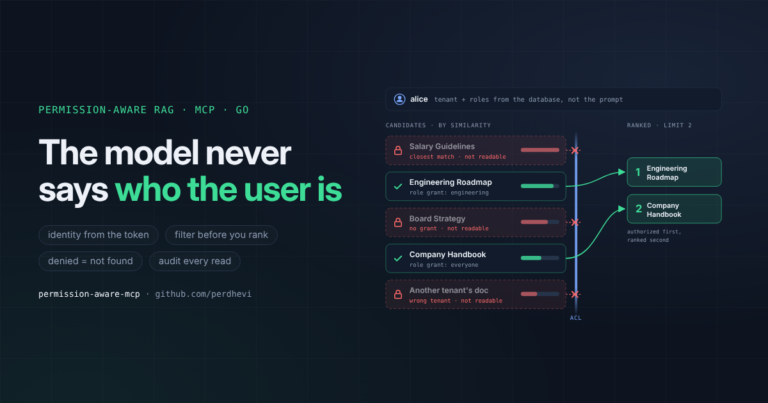
Permissions are the next problem I’m working on, in a separate project: permission-aware RAG, where retrieval only returns what the person asking is allowed to see. I’ll write that up when it’s done.

I built an MCP server without the SDK first. Here’s what MCP actually is.

Most MCP tutorials start with the SDK, so the protocol stays a black box. In obsidian-mcp I wrote the server by hand first, as raw JSON-RPC over node:http, then moved to the SDK. Here’s every message on the wire, what the SDK takes over, and the safety choices for a server that reads my notes.

Most MCP tutorials start with installing the SDK. You register a tool, connect a client, and the model calls your function. It works, and it feels like magic.

It isn’t magic. Underneath is a short JSON-RPC conversation over one HTTP endpoint. I wrote that conversation by hand before I touched the SDK, and it changed how I read everything that came after.

The project is obsidian-mcp, a local MCP server that lets AI clients search and read my Obsidian vault and save new notes into an inbox folder. I built it to learn how MCP, embeddings and vector search fit together, and I built it to be tutorial material: a ten-step guide where every step ends with something that runs. A tutorial that starts at the SDK teaches the SDK. I wanted step one to show the protocol itself.

The code is at github.com/perdhevi/obsidian-mcp, and the step-by-step walkthrough is in the build guide. This post is the why, and what each step taught me. The guide is the how.

The rules of the conversation

Every MCP message is JSON-RPC 2.0. There are only two shapes to know:

  • A request has an id and expects a reply with the same id.
  • A notification has no id and gets no reply.

Over the Streamable HTTP transport, the client POSTs every message to one URL, /mcp in my case. A request gets back JSON (or an SSE stream, which my raw version doesn’t do). A notification gets HTTP 202 Accepted with an empty body.

A session goes in three moves: the client sends initialize, then a notifications/initialized notification, then real work.

The raw server

Step 1 is a single file, src/raw-server.js, using only node:http. No dependencies. This is the guide’s version of the dispatcher:

js

function handle({ id, method, params }) {
  switch (method) {
    case "initialize":
      return { result: {
        protocolVersion: params.protocolVersion,
        capabilities: { tools: {} },
        serverInfo: { name: "vault-raw", version: "0.0.1" },
      }};
    case "tools/list":
      return { result: { tools: TOOLS } };
    case "tools/call":
      if (params.name === "ping")
        return { result: { content: [{ type: "text", text: "pong" }] } };
      return { result: { isError: true, content: [{ type: "text", text: `Unknown tool ${params.name}` }] } };
    default:
      return { error: { code: -32601, message: "Method not found" } };
  }
}

And the HTTP side, which is where notifications and broken input are handled:

js

http.createServer((req, res) => {
  if (req.url !== "/mcp" || req.method !== "POST") return res.writeHead(405).end();
  let body = "";
  req.on("data", (c) => (body += c));
  req.on("end", () => {
    let msg;
    try { msg = JSON.parse(body); }
    catch { return res.writeHead(400).end(JSON.stringify({ jsonrpc: "2.0", id: null, error: { code: -32700, message: "Parse error" } })); }
    if (msg.id === undefined) return res.writeHead(202).end(); // notification
    res.writeHead(200, { "Content-Type": "application/json" });
    res.end(JSON.stringify({ jsonrpc: "2.0", id: msg.id, ...handle(msg) }));
  });
}).listen(3000, "127.0.0.1", () => console.error("raw MCP on :3000"));

That’s under 50 lines, and from the server’s side it’s most of MCP.

What’s on the wire

Here’s the whole conversation, driven by hand with curl. The responses below are what the repo’s raw-server.js returns. That file has an echo tool on top of the guide’s ping, which is one of the guide’s exercises.

bash

mcp() {
  curl -s http://127.0.0.1:3000/mcp -H 'Content-Type: application/json' \
    -H 'Accept: application/json, text/event-stream' -d "$1"; echo
}

1. initialize

→ {"jsonrpc":"2.0","id":1,"method":"initialize","params":{"protocolVersion":"2025-06-18","capabilities":{},"clientInfo":{"name":"sh","version":"1"}}}
← {"jsonrpc":"2.0","id":1,"result":{"protocolVersion":"2025-06-18","capabilities":{"tools":{}},"serverInfo":{"name":"vault-raw","version":"0.0.1"}}}

This is the handshake. The client says which protocol version it speaks and what it supports. The server answers with a version, its capabilities (here, only tools) and its name.

My raw server just echoes back whatever protocolVersion the client sent. That’s enough to get a client talking, and it’s also a shortcut a real server shouldn’t take. A real server answers with a version it actually supports.

2. notifications/initialized

→ {"jsonrpc":"2.0","method":"notifications/initialized"}
← HTTP 202, empty body

No id, so no reply. In the raw server that’s one line: no id, return 202, stop. When you test from a shell you check the status code, because there’s nothing else to look at.

3. tools/list

→ {"jsonrpc":"2.0","id":2,"method":"tools/list"}
← {"jsonrpc":"2.0","id":2,"result":{"tools":[
     {"name":"ping","description":"Health check. Returns pong.","inputSchema":{"type":"object","properties":{}}},
     {"name":"echo","description":"Echoes the input.","inputSchema":{"type":"object","properties":{"text":{"type":"string","description":"The text to echo."}}}}]}}

Each tool is a name, a description and a JSON Schema for its input. That’s everything the model gets when it decides whether to call your tool. Seeing it raw made it obvious that the description is part of the interface, not documentation.

4. tools/call

→ {"jsonrpc":"2.0","id":3,"method":"tools/call","params":{"name":"ping","arguments":{}}}
← {"jsonrpc":"2.0","id":3,"result":{"content":[{"type":"text","text":"pong"}]}}

The result is a list of content blocks, usually text.

5. Two kinds of errors

This is the part worth slowing down for.

→ {"jsonrpc":"2.0","id":4,"method":"tools/call","params":{"name":"nope","arguments":{}}}
← {"jsonrpc":"2.0","id":4,"result":{"isError":true,"content":[{"type":"text","text":"Unknown tool nope"}]}}

→ {"jsonrpc":"2.0","id":5,"method":"resources/list"}
← {"jsonrpc":"2.0","id":5,"error":{"code":-32601,"message":"Method not found"}}

→ {"jsonrpc":
← HTTP 400 {"jsonrpc":"2.0","id":null,"error":{"code":-32700,"message":"Parse error"}}

Calling a tool that doesn’t exist is not a protocol error. It’s a normal, successful response with isError: true in the result. That goes back to the model, which can read the message and try something else.

An unknown method or a broken body is different. Those come back as JSON-RPC error objects, and they’re for the client, not the model. The guide puts it in one line: the model sees tool errors; protocol errors are for the client.

That distinction shapes how you write every tool afterwards. When a tool fails, you return a message the model can act on, and the server keeps going.

What the SDK takes off your hands

Step 2 replaces the raw server with the official SDK on Express, using the Streamable HTTP transport in stateless mode, with a fresh server instance per request:

js

app.post("/mcp", async (req, res) => {
    const server = buildServer();
    const transport = new StreamableHTTPServerTransport({ sessionIdGenerator: undefined });
    res.on("close", () => { transport.close(); server.close(); });
    await server.connect(transport);
    await transport.handleRequest(req, res, req.body);
});

The first real tool is get_note:

js

server.registerTool("get_note", {
    description: "Read one Obsidian note by its vault-relative path, e.g. 'Projects/Idea.md'.",
    inputSchema: { path: z.string().describe("Vault-relative path ending in .md") },
    annotations: { readOnlyHint: true },
}, async ({ path }) => {
    try {
        const n = await readNote(path);
        return text(`# ${n.path}\n\nFrontmatter: ${JSON.stringify(n.frontmatter)}\n\n${n.content}`);
    } catch (e) {
        return fail(`Could not read ${path}: ${e.message}`);
    }
});

Because I’d written the dispatcher myself, I could map every part of this back to the wire:

  • registerTool is an entry in the tools/list response plus a branch in tools/call.
  • The zod inputSchema becomes the JSON Schema the client sees, and incoming arguments are validated against it.
  • fail is a two-line helper that adds isError: true, the same result shape as the unknown-tool case above.
  • annotations.readOnlyHint is extra metadata in the tool list that tells clients this tool changes nothing.

The raw version deliberately skipped things the SDK handles: session IDs (Mcp-Session-Id), SSE streaming, the MCP-Protocol-Version header and input validation. None of that is magic either. It’s the same conversation with more of the edge cases covered.

The guide has you rerun the Step 1 shell calls against the SDK server and compare the responses. That’s the payoff of doing it in this order: the SDK stops being a black box, because you already know what the request and response look like underneath.

What I built on top

The rest of the guide turns this into a real index over the vault. Briefly:

  • Parsing. Notes are split into sections by heading, and each chunk is prefixed with the note title and heading so it still makes sense on its own. Wikilinks and tags are pulled out at the same time.
  • Embeddings. Each section is embedded locally through Ollama with nomic-embed-text. That model expects task prefixes, so documents are embedded as search_document: … and queries as search_query: ….
  • Storage and search. Vectors live in LanceDB, an embedded database. search_vault asks for more hits than it needs and keeps the best section per note, so one long note can’t fill every result.
  • Backlinks. An in-memory map of wikilinks answers get_backlinks.
  • Watching. A file watcher re-indexes notes as I edit them. It’s debounced, because Obsidian autosaves while you type and you don’t want to re-embed the same note over and over.
  • Startup reconcile. Edits made while the server was off produce no watcher events, so on startup the server hashes every note and compares it with the stored hash. Only notes whose hash changed are re-embedded, and notes that disappeared are removed.

Watcher jobs and the reconcile run one at a time through a single promise chain:

js

let chain = Promise.resolve(); // serial queue: one job at a time

const enqueue = (job) => (chain = chain.then(job).catch((e) => console.error("index error:", e.message)));

That’s the whole queue. Its job is to stop two reindexes of the same note from running at once and deleting each other’s rows.

Safety choices for a server that touches personal files

This server reads my notes and can write files. It only runs on my own machine, but every argument a tool receives comes from a model, so I treated it as untrusted input.

Localhost only. The server binds to 127.0.0.1. A small middleware also rejects requests from any browser origin other than localhost, which guards against a web page using DNS rebinding to reach it.

Paths stay inside the vault. Every path is normalized to forward slashes and checked against the vault root:

js

export function resolveInVault(rel) {
    const abs = path.resolve(VAULT, ...normRel(rel).split("/"));
    const inside = path.relative(VAULT, abs);
    if (inside === ".." || inside.startsWith(".." + path.sep) || path.isAbsolute(inside))
        throw new Error("Path outside vault");
    return abs;
}

My first version compared string prefixes (abs.startsWith(VAULT + path.sep)). I replaced it with this path.relative check while adjusting the vault code for Windows path conventions. The new check also catches a path on another Windows drive, where path.relative returns an absolute path. The guide has you try ../../etc/passwd, an absolute path and a missing file against get_note. All three should come back as isError with the server still running.

One tool writes, and only new files. create_note can only create files in the inbox folder. The model supplies a title, never a path. The title is cleaned into a file name that’s valid on Windows, macOS and Linux: control characters and illegal characters are removed, leading dots are stripped, and reserved device names like CON get an underscore. The file is opened with the wx flag, so it fails with EEXIST instead of overwriting, and the tool tells the model to pick another title. There are no edit or delete tools. The tool doesn’t touch the index either; the watcher sees the new file and indexes it like any other edit.

No code in frontmatter. I started with gray-matter to parse YAML frontmatter, and replaced it because of CVE-2026-78847. gray-matter has a built-in JavaScript engine that runs ---js frontmatter through eval(), so any note dropped into the vault could execute code inside an always-on process. Obsidian frontmatter is always YAML, so I replaced it with a small parser around the yaml package:

js

// Optional BOM, "---", the YAML lines, closing "---"
const FM = /^?---\r?\n([\s\S]*?\r?\n)?---[ \t]*(?:\r?\n|$)/;

export function parseFrontmatter(raw) {
    const m = raw.match(FM);
    if (!m) return { data: {}, content: raw };
    let data = {};
    try {
        const parsed = YAML.parse(m[1] ?? "");
        if (parsed && typeof parsed === "object" && !Array.isArray(parsed)) data = parsed;
    } catch {
        // Malformed YAML: keep the body, treat frontmatter as empty
    }
    return { data, content: raw.slice(m[0].length) };
}

Only a plain --- line opens frontmatter, so a ---js block never matches. It’s just text. The guide includes a test: a note that starts with ---js and a console.log("pwned") line should come back with empty frontmatter and those lines as plain text, with nothing printed in the server window.

None of this makes the server safe to expose beyond localhost. That would need authentication and HTTPS, and the README says so.

The takeaway

If you’re starting with MCP, write the raw version once. The guide budgets 45 minutes for it: one file, no dependencies, a handful of calls from your shell. After that, the SDK reads as a convenience layer over a conversation you’ve already seen, and when something goes wrong you know which layer to look at.

Let’s start with AWS Lambda

What is Lambda

We all know that the almost everything in the internet works by making a request to the some server and we would received a response, either in the form of a page, data in JSON, or any form of stream.

So, if we break down the action done in whole lot of sequence, we will notice that the most smallest action is to send a ‘request’ and that we will get a response from the server. The request itself is usually completes an action either providing the data or making changes to a state of some system, and this action usually encapsulated into a function. And this function is what so called Lambda.

AWS Lambda

Lambda in AWS – Run Code without thinking about Servers

As shown in the screenshot here AWS’s Lambda is a solution that intended for the developer to run code without thinking about server, which means that we can focus more on writing the code and we can ‘forget’ about the server that needs to be managed, hence it is termed as ‘Serverless’.

Let’s make a call to function

To see how lambda in action, we can start with a very simple call, eg. responding to a web request and render a page, which in this case there’s already a base template on accomplishing this.

Creating AWS Lambda

We start with clikcing the Create Function, which we would get a few list of option whether we are going to create from scratch or use a blueprint, in this case since we are making a simple call we will use a blueprint option, especially Getting Started with Lambda HTTP part

Create Function initial window

And in the next page, we would see a list of option that we need to set, we can separate the section to Basic which include basic information like the function name, execution role.
Function URL which contain an acknowledgement for allowing the function to be called publicly, that may incur any cost. And the Lambda function code which contain initial lambda function code, which in this case the template would include an index html file and will be called by the lambda function.

Once ready, we can continue to click the Create Function button and we would be directed to a lambda page properties

My First Lambda properties

And when we have this at the initial point we should be ready to call the page by clicking Function URL which should direct us to the page of “Hello from AWS Lambda”

How it works

With that, we have created our first lambda function from the blueprint and it allows us to open a page from the loaded file of index.html, we know this by looking at the Code Source of the section of the Lambda properties.

we can see that the used code here is based on the Node.js which we can identify from the runtime settings under the code source section.

And if we look at the Handler information we can see the description that the value called is the index.handler which in this case it would call the exports.handler in the index.js, thus we are not directly loading the index.HTML page.

Let see if we can tinker with the loaded file, first let’s make a duplicate of the index.html page and remove some part of the content, to make it different.

Duplicate and modify

And also let’s modify the index.js to load the duplicated index file

modified index file

Once done, let’s Deploy and check the page

And voila, the modified page is shown.

Summary

This is how a simple lambda function is created, and how it is being called directly from the Function URL. Although the power of lambda itself is not only provide a simple HTML call, but it can be triggered by other factor, this can be seen from the Function overview section. Where it is also allowed to be triggered by external event.

With that in mind, perhaps we can explore more on the trigger, and one interresting part that we might be able to use is the API Gateway. But that’s would be another story.

A fresh look on my Page

It’s been a while that i’ve touched my main homepage, initially it was a basic blog page that that I wanted to put some thoughts and notes, and now after a few years, I was bored and just want to change.

It started by shifting the blog area to my subdomain so that I can retain my old thoughts, and on the main page I have added a new look.

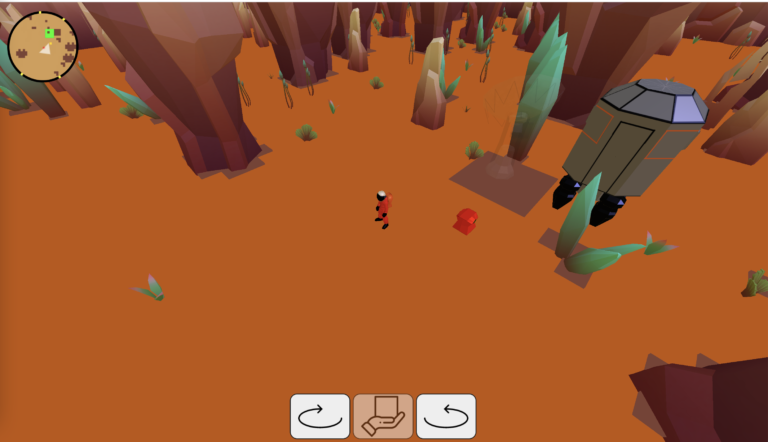
I’ve implemented a short ‘Tadaa’, where from the first view, it just a plain old top banner with just common details. But the show started with clicking of the banner image.

Show started

The whole show itself is build using three.js library and with an extensive amazing course from threejs-journey i’ve assemble a pretty good short game.

The front-page itself is initially rendered using a simple react, and once the show is started the main root of react component is hidden to allow the whole canvas to take place.

The whole page is made using Typescript with Vite.js as the building framework. And the content of the models was bought and taken from Sketchfab with a some are made using blender. I wouldn’t say that i’m good with blender, but this project did give me a good overview of how to work with blender, and make a good work pipeline.

There’s still a lot of stuff that needs to be done here, considering after 2 months spent on this project, but I hope this can give a fresh look on my page after these time.

Starting fresh: New SwiftUI app

It might be a bit ‘shameful’ for me to tell this but as someone who knows how to code Swift, considering my certificate from Udacity to prove this, I’ve never had the courage to create and deploy an App on the App store, I guess it stem from the perfectionist in me saying that you have to publish the next big large and complex app. I guess reading James Clear’s Atomic Habit does give me that push, a good article excerpt from his book, and I pulled up all the courage and reason with that perfectionist self and here it goes.

Just now I just have released a simple puzzle app, a quick math puzzle, it would challenge with the most basic operation of one digit calculation.

App Store landing page

This is a very simple app, it was made utilising SwiftUI framework, where I really enjoyed, comparing with the UIKit and Storyboard. The SwiftUI itself felt really like taking the same approach as React, where we can have the same concept of ‘single source of truth’ or it was a redux or context API, and it’s really simple.

The experience on uploading to the App store itself is quite exciting, there’s some back and forth as I may have ‘missed’ several guideline and may I say that the reviewing process itself is quite amazing, with less than 48 turn around on each submission.

I’m still fixing or more to say adding few feature on the app, some animation and some layout adjustment, i’m getting hooked with simple UI modification lately.

And in case that you would like to take a glance of the app, just click on the app store link on the bottom, and see if you can do 100 streak of correct answer.

Android App Components

Android app is written in Java programming language (mostly). Java code is compiled together with the resource file data required by the application, where the process is packaged by tools called as “apt tools” into the Android package so that it generates files with apk extension. Apk file that’s what we call the application, and later can be installed on mobile devices.

Continue reading “Android App Components”

Architecture of Android Operating System

Android is a Linux-based operating system designed for touchscreen mobile devices such as smartphones and tablet computers. Android was originally developed by Android, Inc., with financial support from Google, which was later purchased in 2005. The operating system was officially released in 2007, in conjunction with the establishment of the Open Handset Alliance, a consortium of hardware, software, and telecommunications that aim to advance the open standards of mobile devices. The first Android phone went on sale in October 2008. –  Source: Wikipedia

Continue reading “Architecture of Android Operating System”

How to Install Android Studio on Windows

The user of Android-based smartphones increasingly more and more where this is an opportunity for developers to develop android applications. Android is an open source so it can be developed by anyone. Beside that is used to develop Android applications is an android studio, and then the question is how to install Android Studio on a computer that uses Windows 7/8/10 operating system? and  What is needed for installing android studio?
Continue reading “How to Install Android Studio on Windows”

Making Android Applications Using MIT App Inventor 2

Android is one of the most popular operating systems since the end of the Symbian era. An open-source operating system that is supported by an attractive display and allows users to choose free or paid applications are available abundant in the Playstore android. This encourages developers to compete in building their best products for the convenience and satisfaction of users.

Continue reading “Making Android Applications Using MIT App Inventor 2”